


Frequently Asked Questions
How do I become a Community Hub member?
Click here to join Mosaic’s Community Hub. Membership is free and allows you to post to the Community Forums, post events, and connect with other members in the Member Directory.
How do I log in and log out?
To log in:
To log in to the Community Hub on a computer, click the orange Login/Join button on the top-right of your screen.
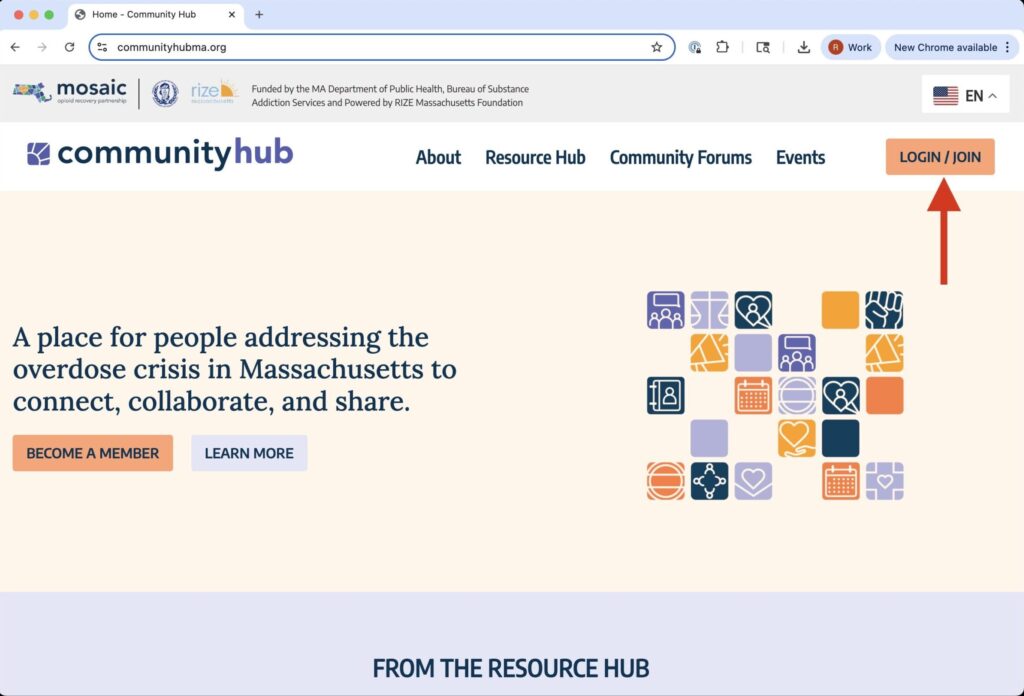

To log in on a tablet or mobile device, click the menu icon on the top-right of your screen to open the mobile menu, then click the Login/Join button.

To Log Out:
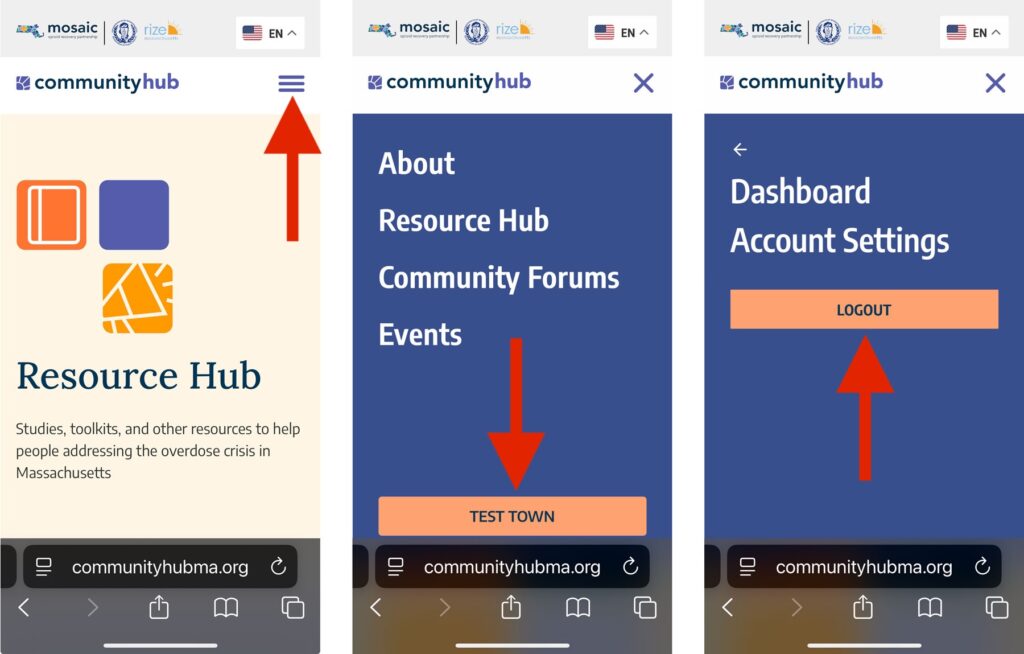
To log out of the Community Hub on a computer, click the orange button on the top-right of your screen that shows your member name on it, then click the Logout button.
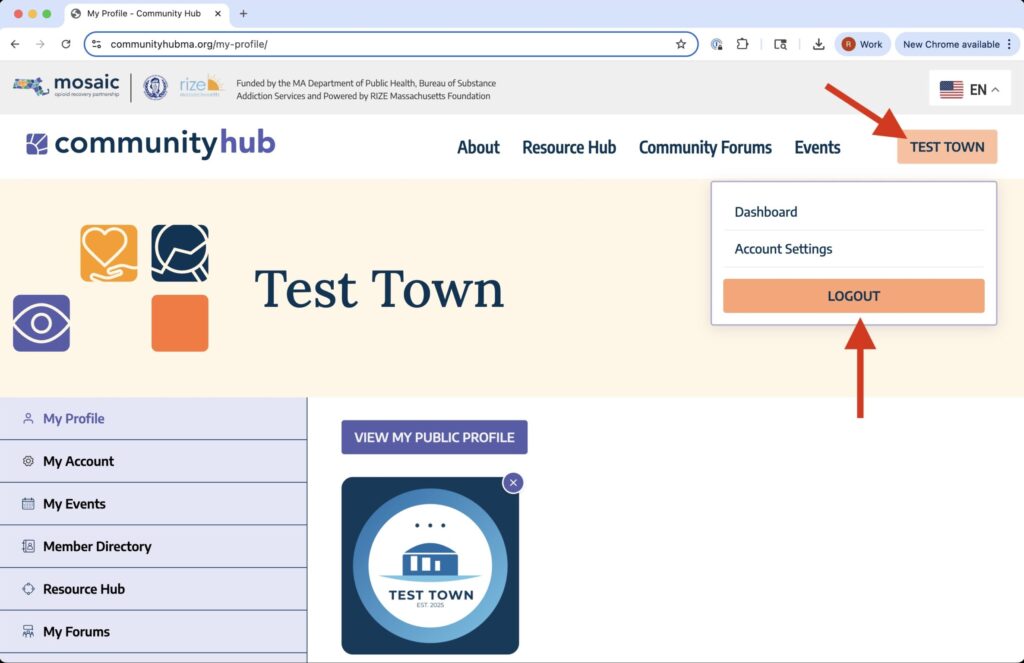
To log out on a tablet or mobile device, click the menu icon on the top-right of your screen to open the mobile menu, then click the orange button with your member name on it, the click the Logout button.
How do I change my Member Profile?
Once you’ve become a member of the Community Hub and have logged in, you can update your member profile on the My Profile page.
To choose whether you’d like to show your profile on the Member Directory or hide your profile from the Member Directory, scroll down to the “Privacy” section at the bottom of the My Profile page.
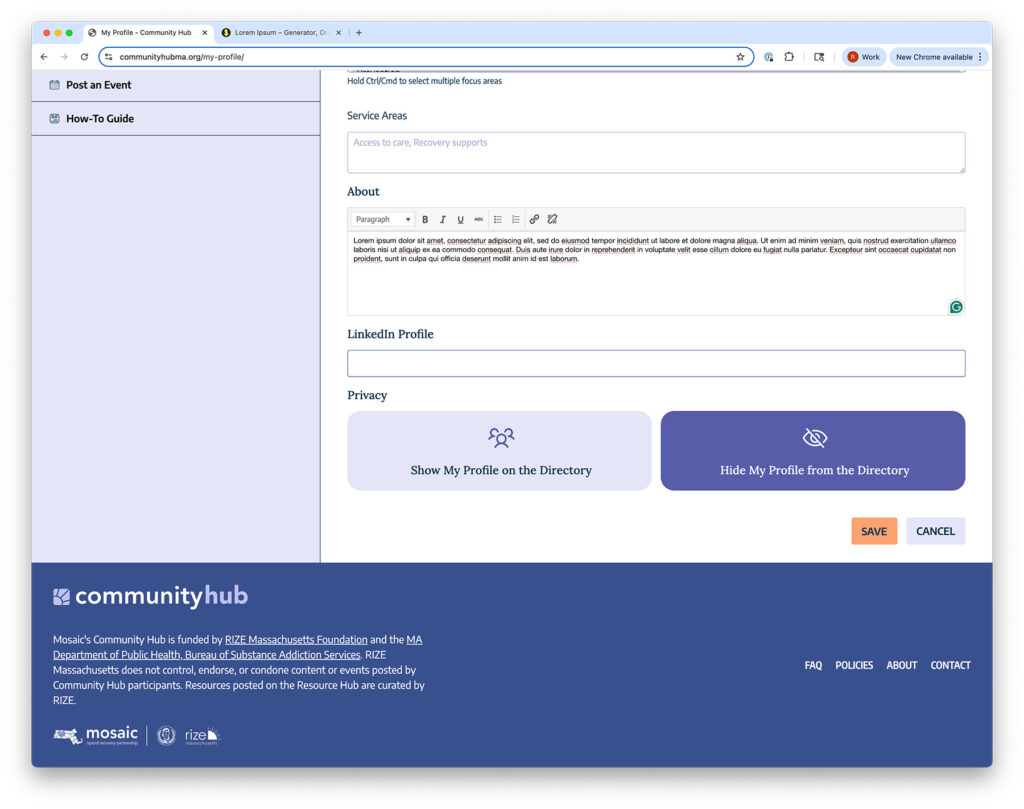
To save your settings, remember to click the “Save” button at the bottom of the page.
Please note that by creating an account on the Community Hub, your member profile could appear in Google Search results, even if you set your profile to be hidden from the Member Directory. To learn how to be completely anonymous on the Community Hub, please see “How to Remain Anonymous on the Community Hub” below.
How do I remain anonymous on the Community Hub?
To remain anonymous while posting events or forum topics on the Community Hub, you will need to sign up for the Community Hub using a generic username and first/last name. Be sure not to include any personal details that could identify you.
You can edit your first and last name in the My Account tab in the Dashboard, after creating an account and logging in to the Community Hub. If you change your name in the “My Account” tab, remember to click the “Save” button at the bottom of the page.
You cannot change your username after you’ve already created an account. If you have already created an account but want to change your username, you would need to delete your current account and start over with a new account, and use a generic username when signing up. Learn how to delete your account in the “How to Delete Your Membership Account” section below.
If you only want to hide your profile from the Member Directory, you can do that by selecting “Hide My Profile from the Directory” in the Privacy section at the bottom of the My Profile tab:
Remember to save your settings by clicking the “Save” button at the bottom of the page.
How do I post to the Community Forums?
To post a topic to the Community Forums, click the orange “Post” button.

On the “Create New Topic” page, you will write your topic post’s title, content, and other details that will help Community Hub members find information that is most relevant to them.
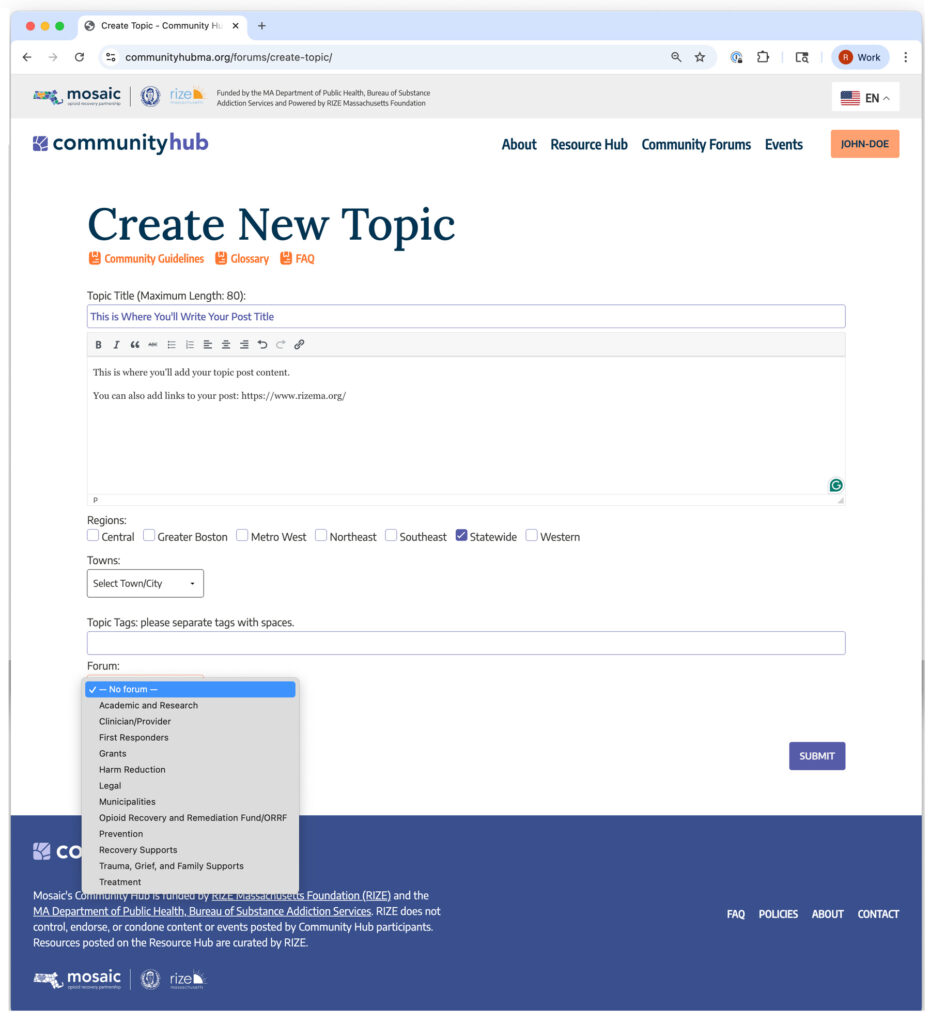
Here are some helpful tips for creating your forum topic posts:
- Write a topic title that quickly tells readers what the topic is about and makes them want to click to learn more.
- You can bold, italicize, and hyperlink text in the visual editor box.
- You can add links to external websites or resources to your post.
- Click on the “Forum” dropdown menu to find an existing forum that your post relates to. This will help people discover your post more easily when they are exploring a certain forum.
- If your post is relevant to a certain region of Massachusetts, you can select one of the regions from the Regions list.
- If your post is relevant to a certain city or town, you can select one from the Towns dropdown menu.
- If you’d like to add topic tags, be specific but also general. Choose tags that describe a specific aspect of the post but could apply to other content people might be looking for. For example, if you post about a resource in a specific language like Haitian Creole, tag it with “Creole.”
- Check the Glossary if you are unsure about a term you are using in your post, or the Community Guidelines for reminders on this community’s principles and guidelines.
- Click the “Submit” button to save your post!
Can I create a private forum?
If you are interested in creating a private forum on the Community Forums, please email the team at RIZE Massachusetts Foundation at info@rizema.org with “Community Hub Forum Request” in the subject line.
How do I post an event?
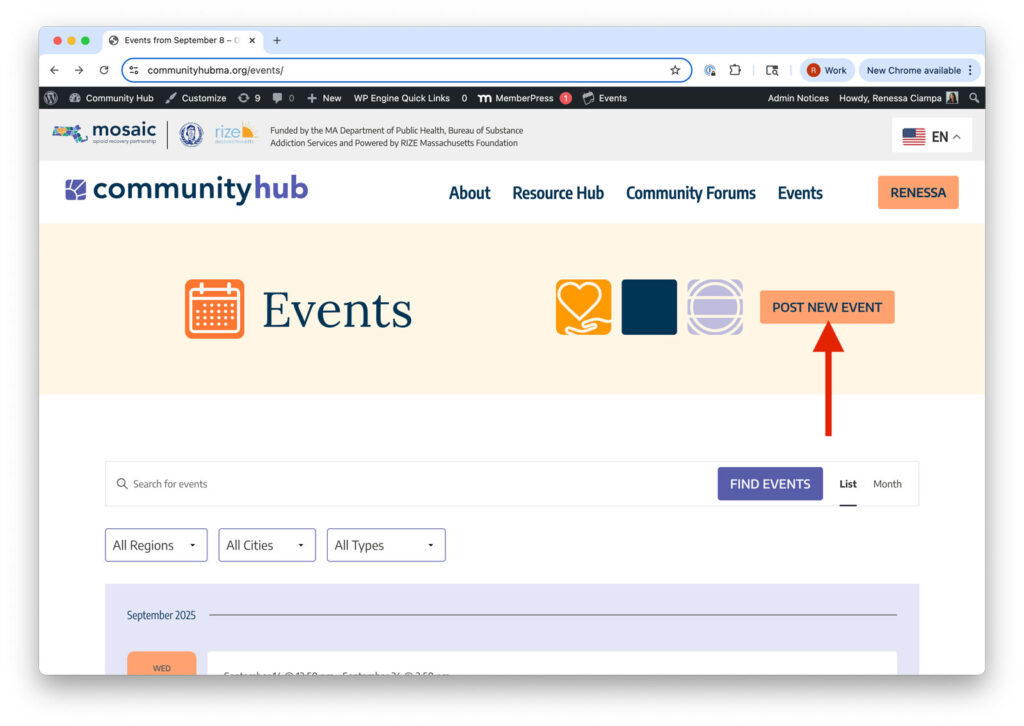
To post an event to the Events page, click the orange “Post New Event” button.
- On the “Create Event” page, you will add the name of your event, the date, time, and location details.
- If it is a virtual/online event, you can select “This is a virtual event.” You can add the event website link in the “Event Website Link” field.
- Select which Region your event is in (or is relevant to).
- Select which type of event it is from the “Event Type” list.
- You can add an image, such as an event flyer, to your event post by clicking on the photo icon.
- Check the Glossary if you are unsure about a term you are using in your post, or the Community Guidelines for reminders on this community’s principles and guidelines.
- Click the “Create Event” button to save your post!

I’ve found an issue. How do I report a problem?
If you see concerning or inappropriate content, please report it to the Community Hub platform administrators.
How do I add sub accounts to my Organization, Municipality, or State Agency account?
If you have an Organization, Municipality, or State Agency account on the Community Hub, you can add sub accounts. A sub account is a “child” account to your “parent” account. This means that as the parent account, you can manage members in your organization, municipality, or state agency, by adding or removing them to your account. You can create up to 50 sub accounts.
To add sub accounts to your account, go to the My Account tab in the Member Dashboard, and scroll down to “Sub Account Management“. If you know of an individual who already has an Individual membership on the Community Hub, you can add them as a sub account by searching for their username, name, or email address in the “Existing Username” field. They will receive an email saying that they have been added as a sub account to your organization.

To make sure your information was saved, click the orange “Add Sub Account” button.
Can I delete my Community Hub account?
To delete your account, go to the My Account tab in the Member Dashboard. At the bottom of the page, you will see “Delete My Account“. After you click that button, you will be asked to confirm that you want to delete your account.
Please note that deleting your account will remove all your personal information, but any forum or event posts you added to the platform will stay under a generic username.

To delete your account, go to the My Account tab in the Member Dashboard. At the bottom of the page, you will see “Delete My Account“. After you click that button, you will be asked to confirm that you want to delete your account.
Please note that deleting your account will remove all your personal information, but any forum or event posts you added to the platform will stay under a generic username.
Can an individual post as an organization account, if that individual is a sub account of the organization?
No, an individual can not post as the organization, even if the individual is linked to that organization. A user needs to log in as the organization in order to post an event or on the forums under that name.